
How to Run LLM Locally: Hardware, Setup and Fixes
Table of contents
- Choose a Model Size Your Memory Can Hold
- Match the file to your available memory
- Check the machine before downloading
- Install, Run and Tune Your First Model
- Install a runtime and compatible model
- Run a small, controlled first test
- Benchmark before choosing your quantization
- Fixing Crashes, Slowdowns and Weak Answers
- Diagnose the symptom before changing settings
- Include context and concurrency in the budget
- When Local Wins
- Choose where each task should run
- Consider hybrid before buying more hardware
- Confirm Your Setup and Choose Your Daily Model
- Build a repeatable acceptance test
You've downloaded a model, closed a few browser tabs, and watched your laptop hesitate before producing its first answer. Then you paste in a client document, and the app freezes. The download worked. The setup didn't.
Learning how to run an LLM locally is mostly about matching a model to the work your machine can sustain. You don't need to train anything, and you don't necessarily need a new GPU. You need the right model file, a runtime that uses your hardware, and a test that goes beyond asking it to say hello.
Choose a Model Size Your Memory Can Hold
The most common mistake is choosing a model first and checking memory afterward. Start with the laptop or workstation you own, including the applications you'll keep open while using it. A consultant running a browser, video calls, and document software has less room available than the machine's specification suggests.
Disk capacity isn't working memory. The model's weights must fit alongside the runtime, temporary allocations, and the context cache that holds information used during the conversation. Dedicated GPU memory, system RAM, and unified memory also aren't interchangeable budgets.
A model that loads is not a model that stays usable. The file size tells you what the weights cost; the context window decides whether the model survives the longest document you plan to paste into it.
Match the file to your available memory
The original LLaMA paper described 7B, 13B, 33B, and 65B models, a useful size ladder: smaller models prioritize accessibility, intermediate models offer more capacity, and larger models push you toward workstation hardware. These are parameter counts, not quality guarantees across unrelated model families.
The llama.cpp documentation lists the original and quantized file sizes used below, roughly a threefold storage reduction in these examples. It also notes that inference loads the model into memory, so the download tells you what the weights cost on disk and nothing about what the context window costs while the model runs.
Model memory needs by size at 4-bit
| Model size | Original size | 4-bit file size | Memory at 8,192-token context | Hardware that usually fits |
|---|---|---|---|---|
| 7B to 8B | 13 GB for the documented 7B | 3.9 GB for the documented 7B | About 6–7 GB, weights and cache included | Laptop with spare system memory |
| 13B | 24 GB | 7.8 GB | Weights run about twice the 7B file, and the cache still adds on top | Higher-memory laptop or desktop |
| 30B to 32B | 60 GB for the documented 30B | 19.5 GB for the documented 30B | About 21 GB, weights and cache included | Desktop GPU or high-memory workstation |
| 65B to 70B | 120 GB for the documented 65B | 38.5 GB for the documented 65B | 38.5 GB of weights before the context window enters the budget | High-memory workstation or split CPU and GPU execution |
The context-window totals come from WebDiga's hardware analysis, which measures what a quantized model occupies once an 8,192-token conversation is loaded rather than what the file takes on disk. Architecture, cache format, and backend still shift the figure, so treat those numbers as planning ranges and confirm them against your longest document. The file-size figures describe the documented models, not every newer model in those size bands.
Practical rule: Choose the model for the memory you can leave available, not the memory printed on the box.
Check the machine before downloading
On Windows, inspect memory in Task Manager and dedicated GPU memory under Performance. On macOS, use Activity Monitor to check memory pressure. On Linux, free -h shows system memory, while nvidia-smi helps inspect an NVIDIA GPU.
For a discrete GPU, check VRAM separately from RAM. For unified-memory hardware, remember that the operating system and GPU draw from a shared pool. Don't allocate the entire pool to model weights.
If you're considering an upgrade, use AI Tool Seekers to compare local AI machine builds against your actual workload, rather than buying around parameter count alone.
This video offers another way to follow the local setup process.
Before committing to a daily model, open the longest document you expect to process and generate a complete answer. A model fits only when that task finishes with memory still steady, not merely when the loading indicator disappears.
Install, Run and Tune Your First Model
Choose a single runtime for your first attempt. Installing several at once makes it harder to identify which application owns a model, which backend is active, and why memory remains occupied after a chat closes.
The workflow is straightforward, but the first run can fail because of a missing backend, an incompatible file, or an allocation that leaves no room for the prompt. Change one thing at a time.
Use this process as your setup checklist.
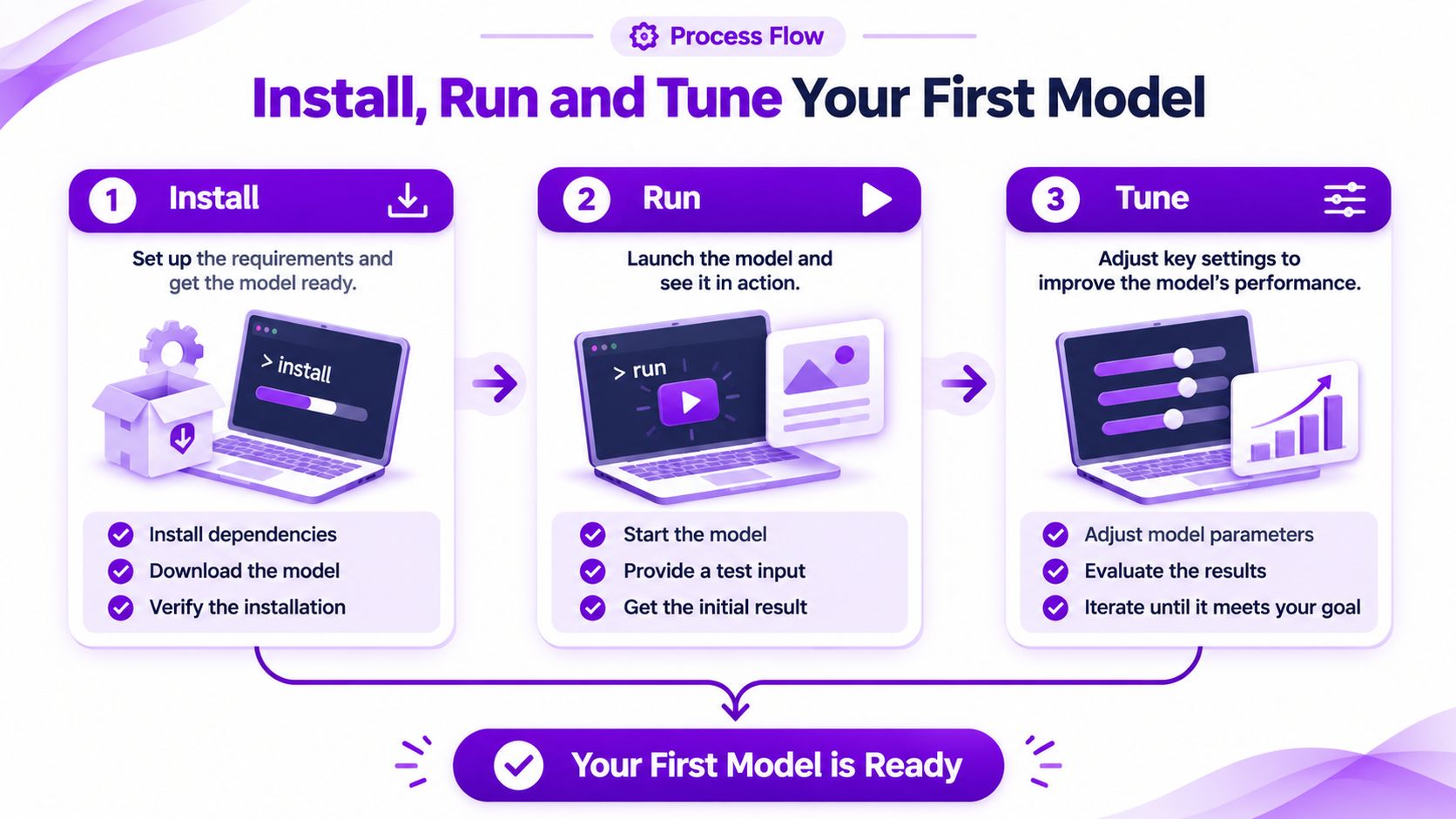
Install a runtime and compatible model
- Choose the interface you'll use. Ollama is a convenient starting point if you want model management through a terminal. LM Studio suits readers who prefer browsing, downloading, and chatting in a graphical application. Choose llama.cpp when you want explicit control over model paths, context, and hardware offload.
Don't install a chat frontend yet. Establish that the underlying runtime works before adding another component.
- Confirm the executable starts. With Ollama, run
ollama listto confirm the terminal can reach the installation. With llama.cpp, runllama-cli -h, or invoke the executable from its build directory if it isn't on your command path.
For LM Studio, open the application and inspect its runtime settings. A command-not-found error is an installation or path problem, not a model problem.
- Download an instruction-tuned model in the right format. For llama.cpp, choose a compatible GGUF file. Instruction-tuned or chat-tuned models are a better starting point for questions and document assistance than base models.
Read the complete filename before downloading. A parameter count alone doesn't identify the quantization, and a full-precision file can exceed the memory budget you intended to use. Keep the model's license and chat-template requirements with your setup notes.
- Enable the hardware backend. On an NVIDIA system, use a CUDA-enabled runtime or build. For supported Apple hardware, use the Metal backend; for other hardware, select a backend your runtime supports.
Check the startup log for device detection and actual offloading. GPU ownership doesn't mean the program is using it.
The Frikiteam llama.cpp guide recommends starting with a 4-bit or 5-bit K-quant, controlling GPU offload with -ngl, and benchmarking prompt processing separately from generation. Its fixed benchmark example uses 512 prompt tokens and 128 generated tokens, which makes repeated tests more comparable.
Run a small, controlled first test
- Load the file explicitly. For llama.cpp, a practical starter command is
llama-cli -m model.gguf -c 4096 -ngl 99 -p "Summarize the purpose of a client onboarding checklist."
Replace model.gguf with your downloaded file path. The context setting is a conservative starting configuration, not a promise that every machine can support it. The offload setting attempts to put the model's layers on the GPU; reduce it if the startup log reports insufficient GPU memory.
If you're running on CPU only, omit GPU offload rather than troubleshooting a device you don't have. CPU inference can still be useful for small, bounded tasks, provided you accept the response time.
- Check a short prompt before a document. Ask for a concise answer whose correctness you can judge. Watch for a coherent response, sensible formatting, and an absence of allocation errors.
Then try a representative document. Notice whether the delay occurs before the first output or between generated words. Those symptoms point to different bottlenecks, so don't combine them into a single impression of speed.
Keep these controls distinct:
Model path,
-m: Selects the actual weights. Changing the filename can change both quality and memory requirements.Context,
-c: Sets the available conversation budget. Raising it just because the model supports a longer window can waste memory.Threads,
-t: Controls CPU work. Excessive threading can create contention instead of improving responsiveness.Temperature: Adjusts sampling behavior. Lowering it can reduce variation, but won't teach the model missing facts.
GPU layers,
-ngl: Controls placement of model layers. It's a hardware-allocation setting, not a quality setting.
For an explanation of sampling controls, the guide to tuning inference settings on Beam is useful alongside local runtime settings. Keep sampling experiments separate from hardware experiments so you know which change caused the result.
Benchmark before choosing your quantization
- Warm up, then measure the same workload. Run
llama-bench -m model.gguf -p 512 -n 128 -ngl 99using the benchmark workload described in the guide. Repeat after the model has warmed up, and preserve the same backend and offload configuration between comparisons.
Record prompt-processing throughput and generation throughput separately. Reading a document and producing an answer stress the machine differently. A fast prompt-processing result doesn't guarantee comfortable interactive generation.
Also record peak memory and whether the application remains responsive. A benchmark that completes while your desktop becomes unusable isn't a successful daily configuration.
- Compare quantizations using real tasks. Keep the model family and prompts fixed while changing only the quantized file. Include a factual extraction task, a rewrite, and a question that requires using information from the supplied document.
The quantization evaluation supports 5-bit variants as a quality-conscious default, well-tuned 4-bit K-quants when footprint matters most, and treating 3-bit formats as higher-risk compromises; compare Q4, Q5, and Q8 when memory permits.
Don't assume the smallest file will be fastest. Dequantization work and memory traffic can offset the benefit of reduced weight storage. Also, a quick but incorrect answer still costs you review time.
Keep a quantization only if it passes your task tests. File size is a constraint, not the score.
Save the winning command, model filename, backend, and context setting in a plain-text note. Your first setup is complete when it produces coherent replies, stays within available memory, and can be restarted without reconstructing the settings from memory.
Fixing Crashes, Slowdowns and Weak Answers
When a model won't load, start with capacity rather than reinstalling everything. Read the final error message and identify whether the failure concerns the model file, device initialization, or memory allocation. Those are different problems with different fixes.
A short prompt that works while a document fails is especially informative. The installation probably isn't the main issue; the document workload is.
Diagnose the symptom before changing settings
Symptoms, causes and fixes
| Symptom | Likely cause | Fix |
|---|---|---|
| Model fails to load | Weights plus overhead exceed RAM or VRAM | Use a smaller model or a lower-memory quant |
| Crashes on long documents | Context cache grows past free memory | Cut the context size or split the document |
| Very slow after loading | Layers spill from GPU to system RAM | Lower -ngl until allocation is steady, then benchmark |
| Fine alone, fails with two apps open | Sessions and embeddings share memory | Close other apps or run one session at a time |
| Garbled or weak answers | Overly aggressive quantization, incompatible template, or insufficient model capability | Try a 5-bit K-quant, verify the template, and retest |
| No GPU speedup | CUDA or another backend is missing or inactive | Install the backend, rebuild if needed, and confirm offload |
Reducing offload is a stability fix, not a guaranteed speed improvement. If CPU execution becomes the bottleneck, a smaller model that fits comfortably on the GPU may feel better than a larger model divided across devices.
Weak answers also deserve a controlled test. If factual extraction fails, supply a shorter passage with an unambiguous answer and verify the chat template before blaming quantization.
Include context and concurrency in the budget
WebDiga's hardware analysis estimates roughly 6–7 GB for a quantized 7–8B model at an 8,192-token context, about 21 GB for a 32B model at that context, and over 28 GB for that larger model at 32,768 tokens. These are workload estimates, not interchangeable file sizes.
Before changing hardware, write down the operating system, available memory, context setting, simultaneous sessions, and any embedding model running alongside the chat model. Include agent requests and background servers. Closing the visible chat window doesn't always unload every process.
A setup that works only with everything else closed may be a demonstration, not a useful work tool.
Quick changes include shortening context, unloading an unused model, stopping parallel requests, and adjusting offload. A different quantization requires another download and retest. Backend rebuilds, driver problems, or a hardware change deserve a separate troubleshooting session rather than rushed changes between client calls.
Use the memory table as a starting filter, then apply a usability test. If your longest expected document fails, shorten the context first and split the document deliberately; if that still doesn't meet your workflow, choose a smaller model. Don't keep increasing swap and call the resulting slowdown a successful fit.
When Local Wins
A local model changes who holds the risk. Inference no longer depends on a remote endpoint, but the application, plugins, logs, backups and the laptop itself remain your responsibility. A stolen device that is accessible can expose client material even if every prompt ran offline.
Treat data location, access control and reliability as separate decisions. A local assistant can be the right choice for confidential work while still being the wrong choice for tasks that need shared capacity, long context or constant availability.
Choose where each task should run
Where to run each task
| Task | Best place to run | Why | Main drawback |
|---|---|---|---|
| Sensitive client documents | Local | Inference can stay on your device | You own security, backups and recovery |
| Routine drafting and rewriting | Local small model or cloud | Choose the option that meets your quality bar with acceptable cost and delay | A small model may need more editing |
| Long-context research | Cloud or hybrid | Avoids forcing oversized workloads onto a laptop | Material leaves the device unless sanitized first |
| Offline travel | Local | Works without an internet connection once installed | Limited to downloaded models and available hardware |
| Batch processing | Hybrid | Local filtering or redaction with hosted processing capacity | More components to maintain |
| Multi-user team access | Hosted local server or cloud | Centralizes shared access and administration | Requires access control, monitoring and recovery planning |
For globally mobile work, prove offline mode before departure. Install the runtime and model, disable network access, then run a representative task. Check every connector the workflow touches: document loaders, embeddings, sync tools and update checks can all turn an “offline” setup into a remote dependency.
Use device encryption, screen locking and access restrictions for local model servers. Check client agreements and applicable requirements before moving business documents across borders or allowing another person to access them. Local inference alone isn't a compliance determination.
Consider hybrid before buying more hardware
Energy use depends on the device, model, context length, batch size, utilization and electricity supply. A laptop that idles between prompts can cost little to run, while a small machine pushed all day may be less efficient than it looks. Measure wall power during a representative task before treating local as the cheaper default.
A useful hybrid workflow starts with local classification or redaction. Review the sanitized output, then send only approved content for remote processing. Names aren't the only identifiers: account details, distinctive project descriptions and document metadata can also reveal sensitive information.
For routine monitoring of changing tools, the weekly AI briefing from Creators Toolbox can help you identify options worth testing. Keep a stable daily model until a replacement survives the same prompts, the same context window and the same memory limits.
If information must never leave the device, keep the entire processing chain local. If the work requires more context or shared capacity than your hardware can sustain, evaluate hybrid routing with explicit rules about what may leave.
Confirm Your Setup and Choose Your Daily Model
Your daily model should be the smallest one that handles your work reliably, not the largest one you managed to launch. Keep the evaluation close to the tasks you're paid to finish.
Build a repeatable acceptance test
Choose representative work. Prepare a client-style document, a drafting request, and a question that requires reading a long passage. Remove real confidential information while testing unfamiliar software.
Compare a quality-focused quantization with a smaller model. Use identical prompts and source material. Judge whether the answers preserve facts, follow instructions, and admit when the document doesn't contain an answer.
Record usability as well as speed. Note throughput, peak memory, answer quality, and failures. Include whether your normal browser and work applications remain responsive.
Select for headroom. Prefer the configuration that can finish the demanding task without emergency app-closing or repeated retries. Keep a separate option for work that exceeds that limit.
Save the working setup. Store the command, model filename, runtime version, backend, and test prompts together. Restart the machine and confirm the saved configuration still works.
Ready for daily use: The answers remain useful across repeated prompts, memory stays steady, and restarting doesn't require troubleshooting.
Add a local chat interface, a task-specific model, or hybrid routing only after this baseline is dependable. Each addition should solve a named problem rather than expand the stack for its own sake.
Today, save a working command and run your longest representative document through it. Before the week ends, choose your daily model from the recorded results.
At Mazurly, we create practical tools and operational guides for freelancers, founders, and remote professionals building a business from anywhere. Visit Mazurly for resources that connect productivity choices like local AI with the everyday work of running a resilient, location-independent business.