
Claude Projects let you organize your work with custom instructions and uploaded files that Claude remembers across all chats in that project. Whether you’re managing a coding project, analyzing research papers, or building a content workflow, Projects keep Claude focused on your specific needs without repeating context every time.
What Is a Claude Project?
A Claude Project is a dedicated workspace where you can add custom instructions and upload files that Claude references in every conversation within that project. Think of it as giving Claude a persistent memory and specific role for a particular task or domain.
Projects have two main components. Custom instructions tell Claude how to behave, what tone to use, and what rules to follow. Project knowledge includes the stuff you upload, documentation, data files, code, or research papers, that Claude can reference or use asa guide when answering questions.
You’d use a project when you need Claude to consistently work with the same context. A developer might create a project with their codebase and coding standards. A researcher might upload papers and ask Claude to always cite sources. A content creator might include brand guidelines and product specs.
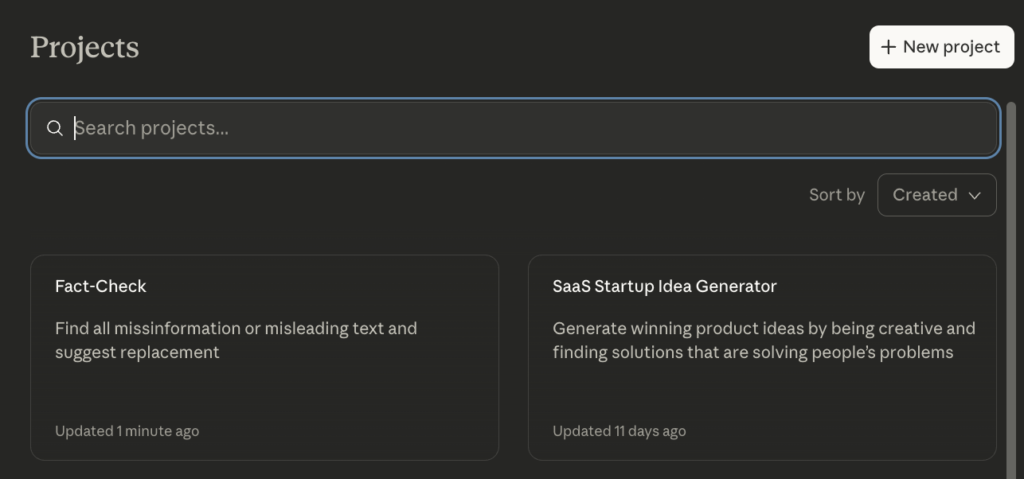
Setting Up Your First Claude Project (Step-by-Step)
Creating a Claude Project takes five quick steps. You’ll have a working project in under 5 minutes.
Step 1: Access the Projects Feature
Click the Projects icon in the left sidebar of Claude or navigate directly to this section: claude.ai/projects.
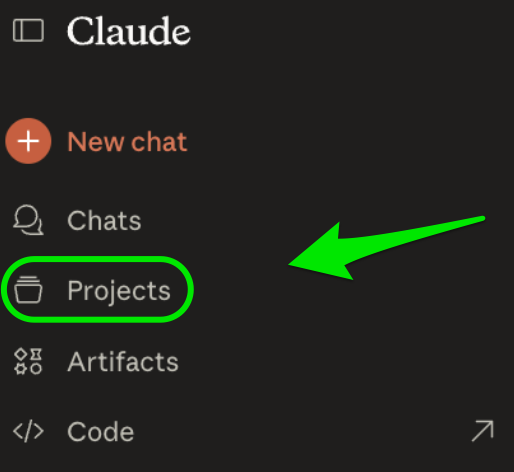
Note: If “Projects” isn’t showing in your sidebar, it’s because it isn’t included in the free plan. You’ll need a Pro or Team subscription to access it.
Step 2: Create a New Project
Hit the “Create Project” button in the top right.
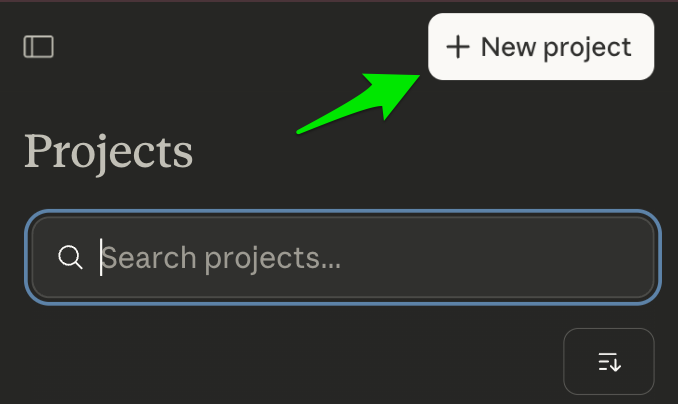
Step 3: Name Your Project
Give your project a clear, descriptive name. “Email Template Generator” works better than “Emails” because you’ll recognize it instantly when switching between projects. The name appears in your dashboard and helps you stay organized when you’re managing multiple workspaces, in the second field you can also add description for project details. (This is just a naming it does not affect or help Claude in any ways)
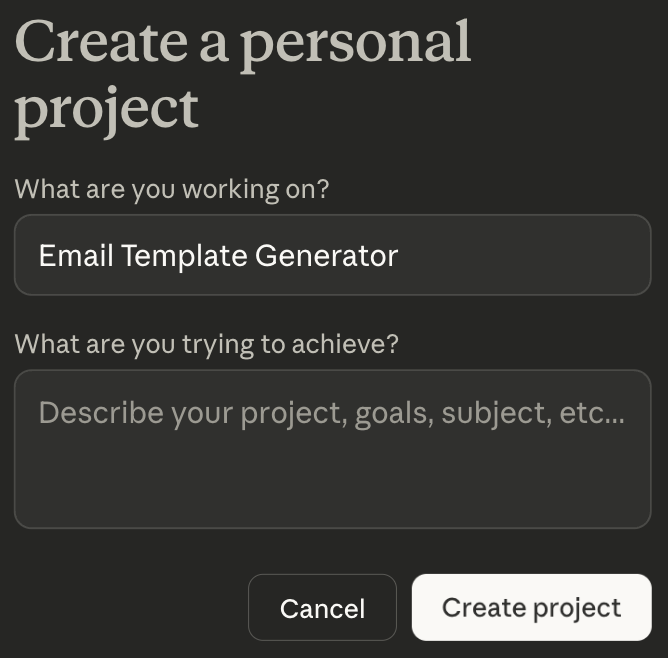
Step 4: Add Custom Instructions
This is where you tell Claude how to behave in this project. Write 2-3 paragraphs explaining Claude’s role, your preferences, and any rules to follow.

Note: Context is not shared across chats within a project unless the information is added into the project knowledge base.
Here’s a simple instruction example for an email project:
‘You’re a professional email marketing specialist helping me create email templates. Always structure templates with clear placeholders for personalization (like {{FirstName}}, {{CompanyName}}, {{ProductName}}). When designing templates, include a compelling subject line, preheader text, clear sections with headings, and a strong call-to-action. If you’re uncertain about brand voice, technical requirements, or specific use cases, ask for clarification instead of assuming. Prioritize scannable formatting with short paragraphs, bullet points, and white space over dense text blocks. Always consider mobile responsiveness and accessibility in your suggestions’
Step 5: Upload Project Files (aka Knowledge Panel)
Click “Add Content” or drag and drop to upload files Claude should reference. You can add PDFs, text files, CSVs, DOCX files, and images. The system accepts most common formats, add the ones you’ll need to reference most often, information that’s crucial for the project to always remember, like company info, brand style guides, product descriptions etc.
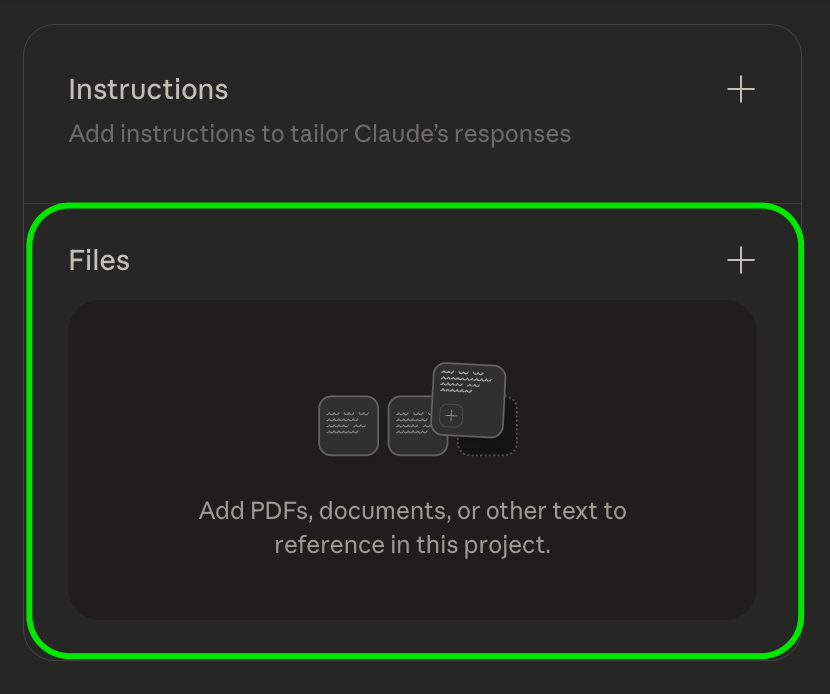
Adding Files and Knowledge to Your Project
The system accepts these file types: PDF, TXT, CSV, DOCX, MD (Markdown), HTML, and common image formats like PNG and JPG. Each file should stay under 30MB for reliable processing, bigger than that is not accepted.
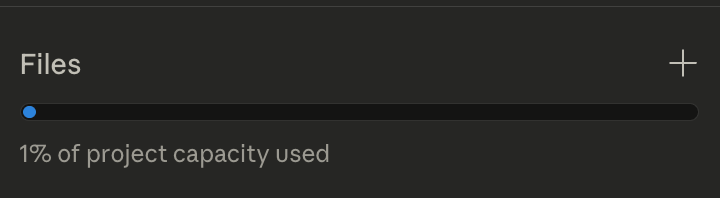
When you add files, Claude indexes their content and references them when relevant to your questions. You don’t need to mention the files explicitly in every chat. If you ask “What does the API documentation say about authentication?” Claude knows to check your uploaded API docs.
Best practices for project knowledge:
- Upload only files you’ll reference regularly
- Don’t dump your entire hard drive into a project.
- Keep related documents together in one project rather than spreading them across multiple workspaces.
- Name your files descriptively before uploading so you remember what each contains.
- Remove/Update outdated files when you update documentation to prevent Claude from citing old information.
Writing Effective Custom Instructions
Custom instructions shape how Claude behaves in every conversation within your project. Good instructions are specific and actionable. Bad instructions are vague or overly long.
Start by defining Claude’s role in one sentence. “You’re an email template specialist helping me create marketing emails” works better than “You’re an AI assistant who helps with various tasks.” Then add 2-4 key rules or preferences that matter most to your work. For email templates, you might write: “Always include merge tags like {{FirstName}} for personalization. Keep subject lines under 60 characters. Structure emails with clear sections and a single call-to-action. Ask for clarification on brand voice before assuming tone.”
Common mistakes to avoid:
- Don’t write a 500-word essay. Claude works best with clear, scannable guidelines.
- Don’t contradict yourself, if you say “be brief” but also “explain everything thoroughly,” Claude won’t know which to prioritize.
- Don’t include content that belongs in project knowledge, like your actual company information, legal disclaimers, or brand guidelines, upload those as supporting files instead.
You can edit instructions anytime. If Claude isn’t following a guideline, make it more explicit. If a rule isn’t helping, remove it.
Managing and Organizing Your Projects
Your Projects dashboard shows all your workspaces in one view. Click any project to see its chats, knowledge base, and settings. You can find and edit the project name, instructions, and files from the settings panel.
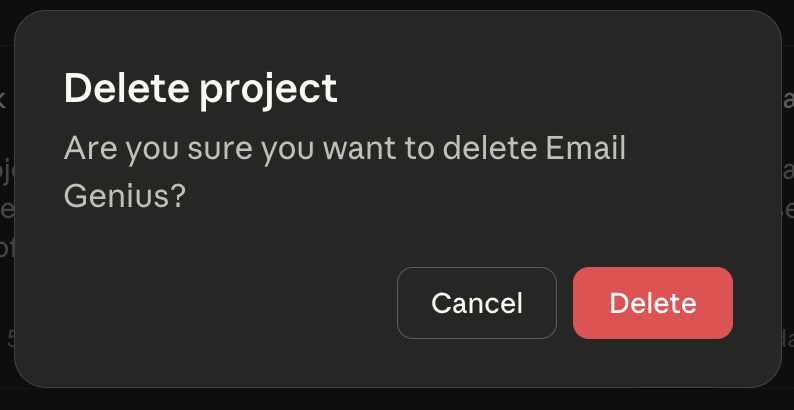
To delete a project: Open the project, click the three-dot menu in the top right, and select “Delete Project.” Claude will ask you to confirm since this action removes all chats within that project. If you have important conversations you want to keep, copy them to another project first or save them externally.
5 Tips for Getting the Most from Claude Projects
1. Start with instructions, not just files
Many people upload documents first and skip the custom instructions. That’s backwards. Instructions tell Claude how to use the knowledge you’re about to provide. Write your guidelines first, then add files that support them.
2. Keep projects focused on one domain or task
Don’t create a catch-all project with your entire work life inside. A project called “Everything” with 47 random files won’t perform as well as three focused projects. Claude works best when project knowledge has thematic coherence.
3. Test your knowledge base with questions
After uploading files, ask Claude a few questions that should pull from those documents. “What’s our return policy?” or “How does the authentication system work?” If Claude can’t answer, your files might be formatted poorly or the content isn’t as clear as you thought.
4. Update instructions as you learn what works
Your first draft of custom instructions won’t be perfect. After a few conversations, you’ll notice patterns. Maybe Claude is too verbose, or it’s not catching errors you care about. Edit the instructions to fix these issues. Treat them as living guidelines, not set-in-stone rules.
5. Use descriptive project names with dates when relevant
“Q4 2024 Marketing” tells you more than “Marketing Project.” Adding time periods helps when you’re creating seasonal or time-bound projects. You’ll immediately know which workspace to use without opening each one.
Claude Projects vs ChatGPT Projects
Claude Projects and ChatGPT Projects solve similar problems but work differently under the hood. ChatGPT Projects use an automatic memory system that creates curated snippets from your conversations over time. Claude Projects let you explicitly control context through instructions and uploaded documents, and give you full access to search and reference past project conversations directly.

Claude’s approach gives you more predictable behavior since you define exactly what context matters. ChatGPT’s memory can surface unexpected connections but sometimes retains information you didn’t want saved. If you prefer explicit control over what the AI remembers, Claude Projects will feel more transparent.
FAQ
Can you share Claude Projects with others?
Yes, if you’re on a Claude Team or Enterprise plan. You can share projects with specific team members by email, add multiple users at once, or make projects available to everyone in your organization. Project creators can modify permissions or remove access as needed. Free and Pro plan users can’t share projects.
How many projects can you create, and what are the limits?
Anthropic hasn’t publicly specified a limit on the number of projects for Pro and Team users. Each project holds around 200,000 tokens of knowledge, roughly 150,000 words or 500 pages of text. Individual files should stay under 30MB for reliable uploads. Free plan users don’t have access to Projects at all.
What’s the difference between project knowledge and regular chat uploads?
Project knowledge stays available across all chats in that project. Regular chat uploads only exist in that single conversation. If you reference a document frequently, add it to project knowledge. If it’s a one-time context, upload it to the individual chat instead.
Can you convert a regular chat into a project?
Not directly. You’ll need to create a new project and manually copy over any context or files you want to include. There’s no one-click conversion from a standalone chat to a project workspace.
Do projects slow down Claude’s responses?
Not noticeably for most projects. Claude references project knowledge efficiently. Very large knowledge bases might add a second or two to response times.
What happens when you hit the token limit?
Claude will tell you the project is full and ask you to remove files before adding more. You can’t bypass this limit, so treat it as a forcing function to keep your project knowledge focused and current.